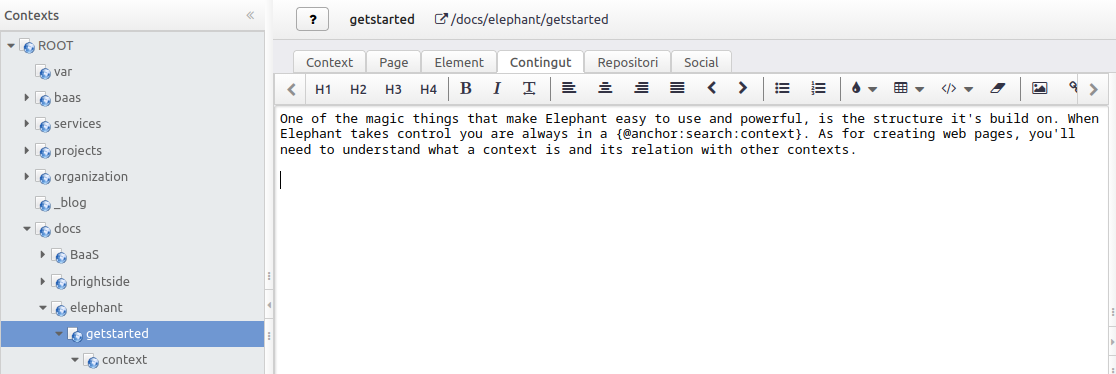
One of the magic things that make Elephant easy to use and powerful, is the structure it's build on. When Elephant takes control you are always in a Context . As for creating web pages, you'll need to understand what a context is and its relation with other contexts.
Contexts are a hierarchic structure that controls all the web navigation.
By default, Elephant templates use the powerful Fomantic UI. Admins can change the framework by using context's Layout root attribute, and writing specific layouts for the framework of choice. Templates use the Freemarker markup.
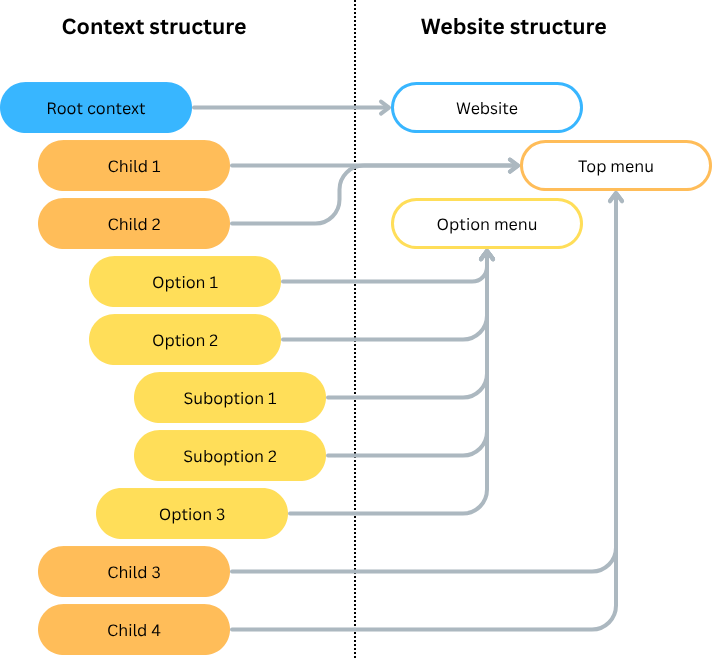
A context is a web page. The website is composed by a ROOT context with children. The root structure is a tree, each context can have content and children.
The full path for current context would be (breadcrumbs and left menu shows current top child's children):
Elephant sites allow creating as many contexts as you might require, remember a context is equivalent to a page. There is no other limit than the available space and your imagination. Creating pages involve thinking where you want to construct them. To understand this you might think of your site as a tree. The trunk is the home page. First branches will be home its children and so on. Your tree can have many branches, Elephant will take care to make easy the navigation among them.
Elephant creates the main menu and option menu based on the context tree.
| Type | Description |
|---|---|
| Main menu | Elephant takes the contexts directly attached to the root, and with Show in navigators set to true. |
| Option menu | Elephant takes selected top context's children and creates a lateral menu. Since this menu can be very populated, the current context is always unfolded, backwards to the root, and forwards to its children.
By default, option menus show 2 levels of indentation, except current context, fully unfolded. |
Context builds up with two different kinds of elements. The actual elements and the layout elements. Despite their names, they respond to a very usual situation. You know how your site should look and don't want to repeat the design for each page. These elements are the layout elements. They are defined at top level, in site's home, and inherited for lower levels.
Each context has several attributes that define its behavior.
| Attribute | Description | Inherited |
|---|---|---|
| Name | Context name as it shows in the menus. If you have more than one language configured, you'll have as many inputs as languages. | |
| I18n Key | Uses an i18n key. If you are using the translation features, using this key doesn't require setting names per language, the translator will use it's own values. | |
| Order | Controls context ordering. It's an alphanumeric value, write numbers with leading zeros. ex. 001, 002 and so on. | |
| Show in navigators | When selected the context is shown in navigators. It's useful when you have pages you don't want them accessed directly. | |
| Show always | Even if the context is protected by a role, it will show in navigators. With this attribute set to true, a context will force visitors to login if they want to see the content. | |
| Traversal navigation | When set to true, Elephant adds a traversal menu. Traversal menus ensure the user can press on next context, previous context or parent context, taking into account the indentation levels, similar as passing page in a book.
Traversal menus appear on the top and bottom of the content. |
|
| Internal attribute that tells the context, when set to true, to be part of the printed version of the page. The main purpose of this attribute is to hide content from printed versions. | ||
| Server driven | Only visible to su, when true tells the page to execute the template rendering on the server side. Defaults to false, to provide all features. Use with care, and for a reason, like hiding content in exceptional cases. | |
| Context role | Protects the context from users with not enough permissions. A simple use is user:in (user logged in), hiding the context to visitors. You can specify much more complex roles, see Permissions
. |
|
| Language | Comma separated values, prefixed with _ and in ISO 639-1 indicating languages for this page. For example: _en,_ca,_de means English, Catalan, German. Languages are inherited, setting them in the root context will propagate to all pages. |
|
| Web tag | Allows tag navigation, mainly used on funneling. | |
| Redirection | Used for navigation purposes. Will locate the context in menus, and when selected will move to the redirection. Use relative paths within the web, and full URLs when navigating outside the website. | |
| Not to index | Tells the robots (crawlers) not to index this page. | |
| Not to follow | Tells the robots (crawlers) not to follow links in this page.
Prevent robots from messing up Set Not to follow to true when the page contains pagination, categorization or multiple links. For example projects, publications and the like. Elephant auto-creates a sitemap with all these links.
|
|
| Printer version | Shows a print button at the end of the content. | |
| Version control | Shows a list of previous versions of the page. | |
| Layout root | Only visible to su, indicates the template root. Elephant already uses a default value. Use with care, and only if you are writing alternative templates with a different framework. | |
| Layout | Tells the layout to be used in this page. You'll learn more about layouts in the following pages. This value is inherited by the children. Defaults to default-web. |
|
| Local layout | Tells the layout to be used in this page, and not to inherit by the children.
Setting a root landing page
default-web works best for normal pages, and includes the option menu when the current context has children. When setting a root landing page, you can indicate with this attribute to use default-landing locally. In combination with Layout =default-web will tell the children to use a simple format.
|
|
| AI | When using AI, tells Elephant AI to use the page content as an AI feed, and which language to use.
Feed structured text Pages with images, videos and other multimedia, won't work well as a feed. Use text pages, separate concepts with headers, and whenever possible, use the same language for feeds.
|
Elephant contexts can have different layouts, depending on which information they will show. You can change the context's layout at any point, the content will stay the same.
This table lists the default layouts, provided out-of-the-box.
| Layout | Description |
|---|---|
| default-web | This layout covers most page cases. Uses a fixed width that adapts to different devices. Includes the option menu at page's left, that only shows when the context has children.
Page header and footer
Breadcrumbs Option menu Traversal navigation |
| default-landing | This layout takes the full width. It's up to the user to use containers that make content readable. Ideal for landing pages, using stripes from Wmacros.
Page header and footer
Breadcrumbs Option menu Traversal navigation |
| default-wider | This layout uses a wider width. Mostly used for lists with pagination and categorization. Uses a slightly gray background, so cards, segments and other containers are enhanced.
Page header and footer
Breadcrumbs Option menu Traversal navigation |
| default-wider-menu | Equal to default-wider, adding the options menu if the context has children.
Page header and footer
Breadcrumbs Option menu Traversal navigation |
| default-wider-topmenu | Similar to default-wider-menu, but the menu shows at top, distributed horizontally and showing only direct childs.
Page header and footer
Breadcrumbs Option menu Traversal navigation |
| default-clean | Similar to default-landing, but with breadcrumbs.
Page header and footer
Breadcrumbs Option menu Traversal navigation |
| default-clear | Blank space to write content.
Page header and footer
Breadcrumbs Option menu Traversal navigation |
Repositories are spaces where you upload documents. Documents include also images. Elephant provides different types of repositories, each independent and structured. Repositories are attached to some Elephant entity, including contexts (web pages).
Each context has its own repository. Admins can access any repository while editing a context, but by default Elephant will point to the current context's repository.
While editing a context, current repository can be addressed with the shortcut repository(/filename.ext). When using the Wiki editor, the shortcut is used by default.
Global repository is the website's root repository. For all purposes, the global repository is a normal repository, worth mentioning because it has its own shortcut grepository(/filename.ext).
The main intention for having a global repository is to have often used images collected in a single place. For example, logos, icons (services/products) and others.
With this structure, a logo could be easily referenced with grepository(/logos/logo.png).
Elephant entities have their own repositories. When writing context for an entity, the default repository will the entity repository, and referenced the same way as in contexts. These repositories ares publishable.
Elephant entities also have private repositories. Private repositories can only be accessed by admins, and their purpose is completely different.
Elephant maintains different context related caches to increase performance.
site.xml.While administering the website content, cached values are automatically refreshed.
site.xml is currently feeding the Advanced configuration system. In future releases, will completely replace this file. More about it in Configurator
.